
Session controls how a capture session behaves. Tabs: Main, Survey, Disclaimer, and Payments.
Main
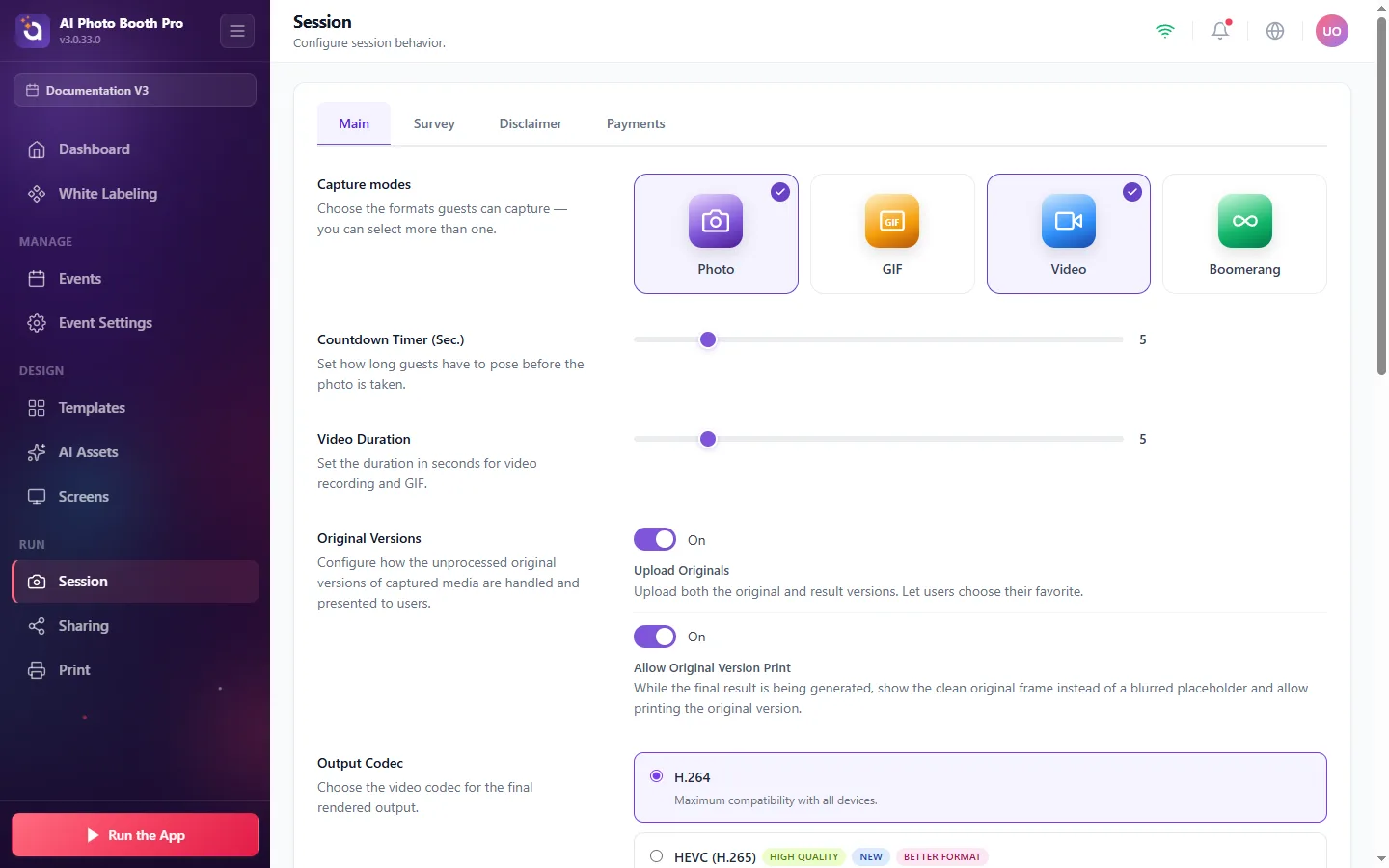
- Capture modes, Photo / GIF / Video / Boomerang.
- Countdown Timer, seconds guests get to pose before the photo is taken.
- Video Duration, length of video/GIF recordings.
- Original Versions, Upload Originals (keep both original and AI result so guests pick their favorite) and Allow Original Version Print.
- Output Codec, H.264 (maximum compatibility) or HEVC/H.265 (higher quality).
Payments (charge guests for prints & downloads)
Payments are off by default. Turn Payments on to start charging guests.
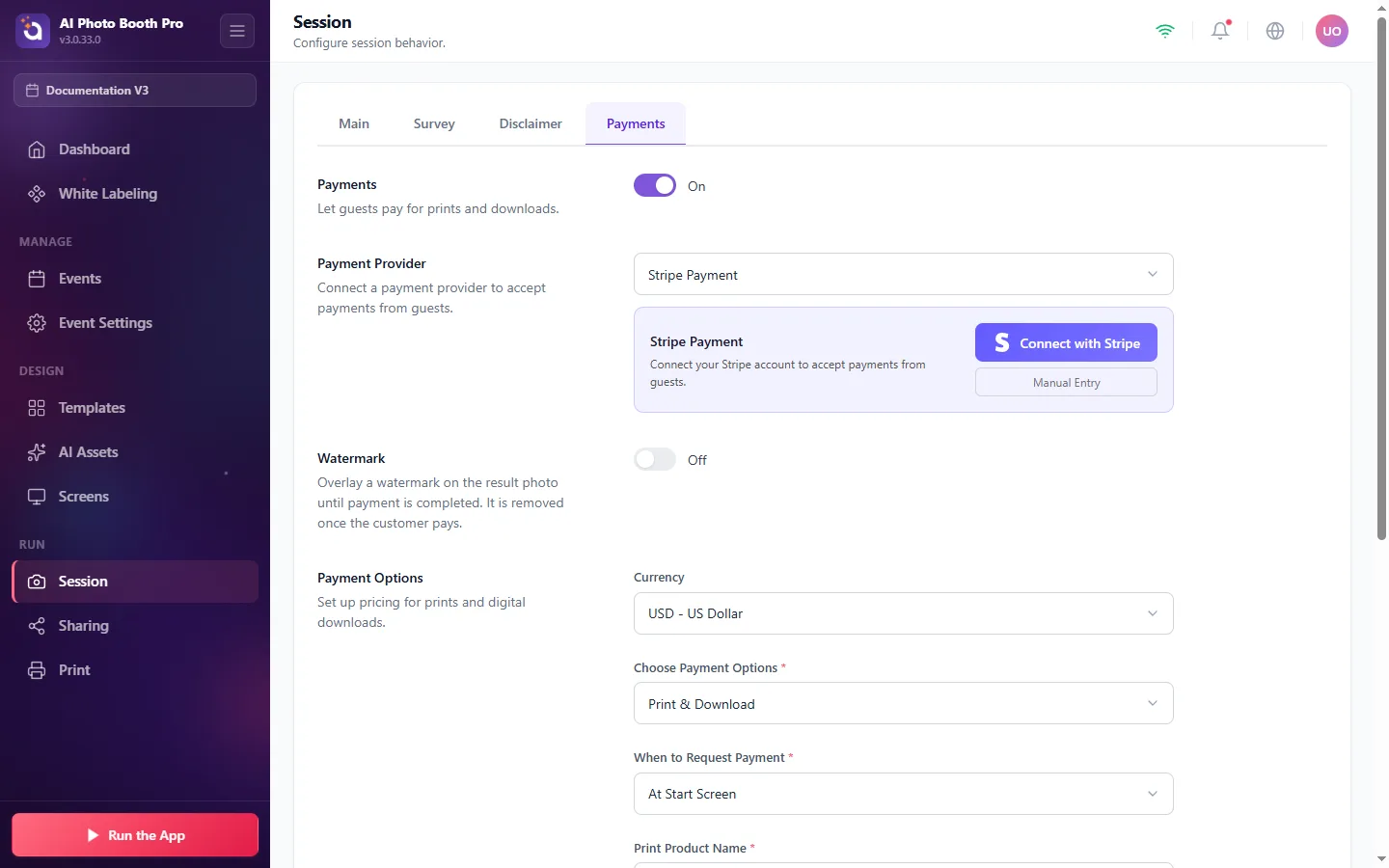
To set it up:
- Toggle Payments On.
- Under Payment Provider, choose Stripe Payment and click Connect with Stripe to link your Stripe account (or use Manual Entry to paste your keys).
- (Optional) Turn on Watermark to overlay a watermark on the result until the guest pays, it's removed automatically once payment completes.
- Under Payment Options, set: - Currency (e.g. USD). - Choose Payment Options, Print & Download, Print Only, or Download Only. - When to Request Payment, At Start Screen, After Capture, or After Sharing. - Print Product Name / Download Product Name and their Prices. - Minimum Paid Prints per session.
Guests then see a payment step in the booth (shown in section 14).
Survey and Disclaimer tabs let you collect a quick guest survey and show a consent/disclaimer message before capture.