
Event Settings is where you configure the active event. It has five tabs: Main, Event Mode, Output, Camera, and Kiosk.
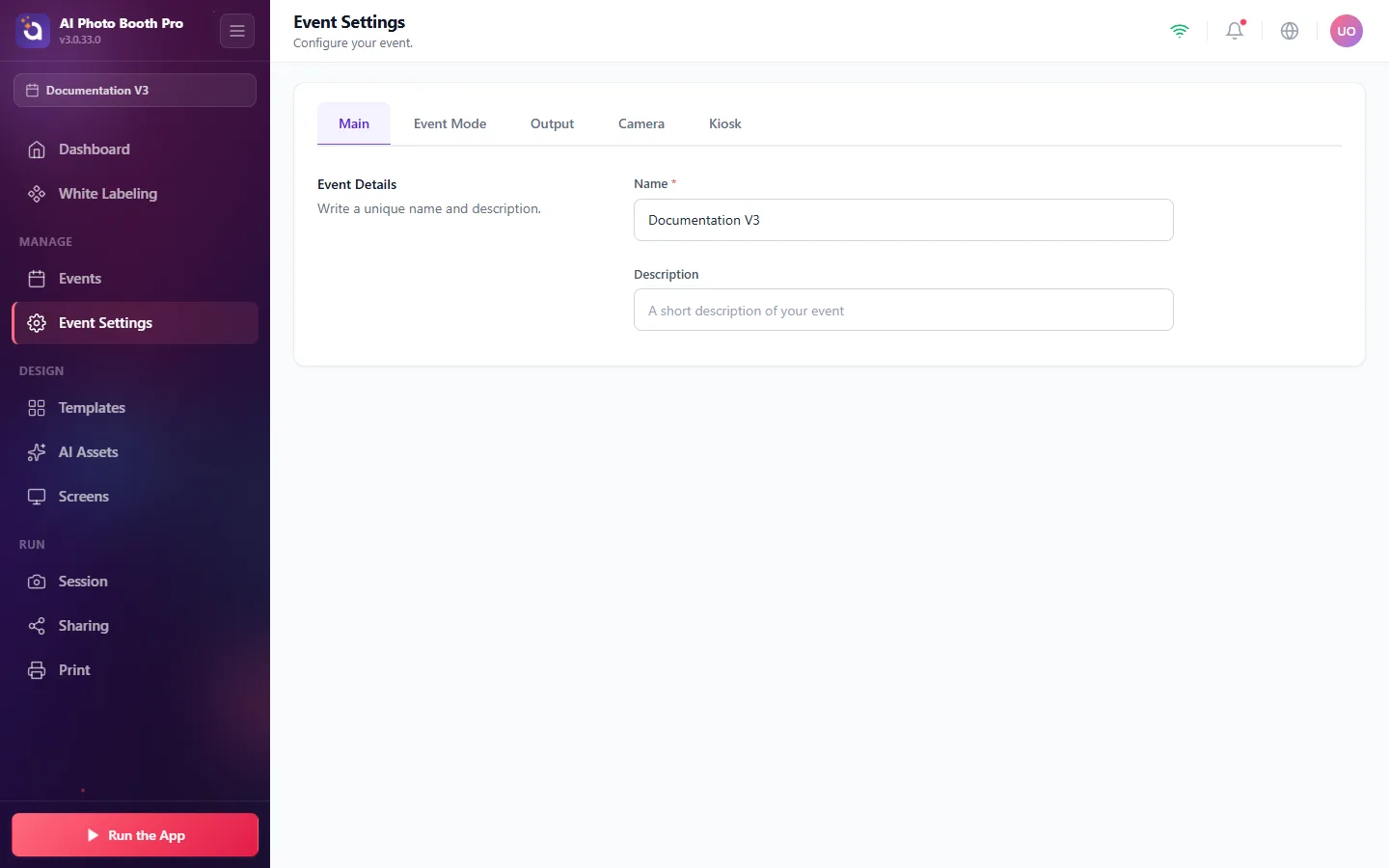
Main
Give your event a unique Name and Description.
Event Mode
Choose how the booth runs:
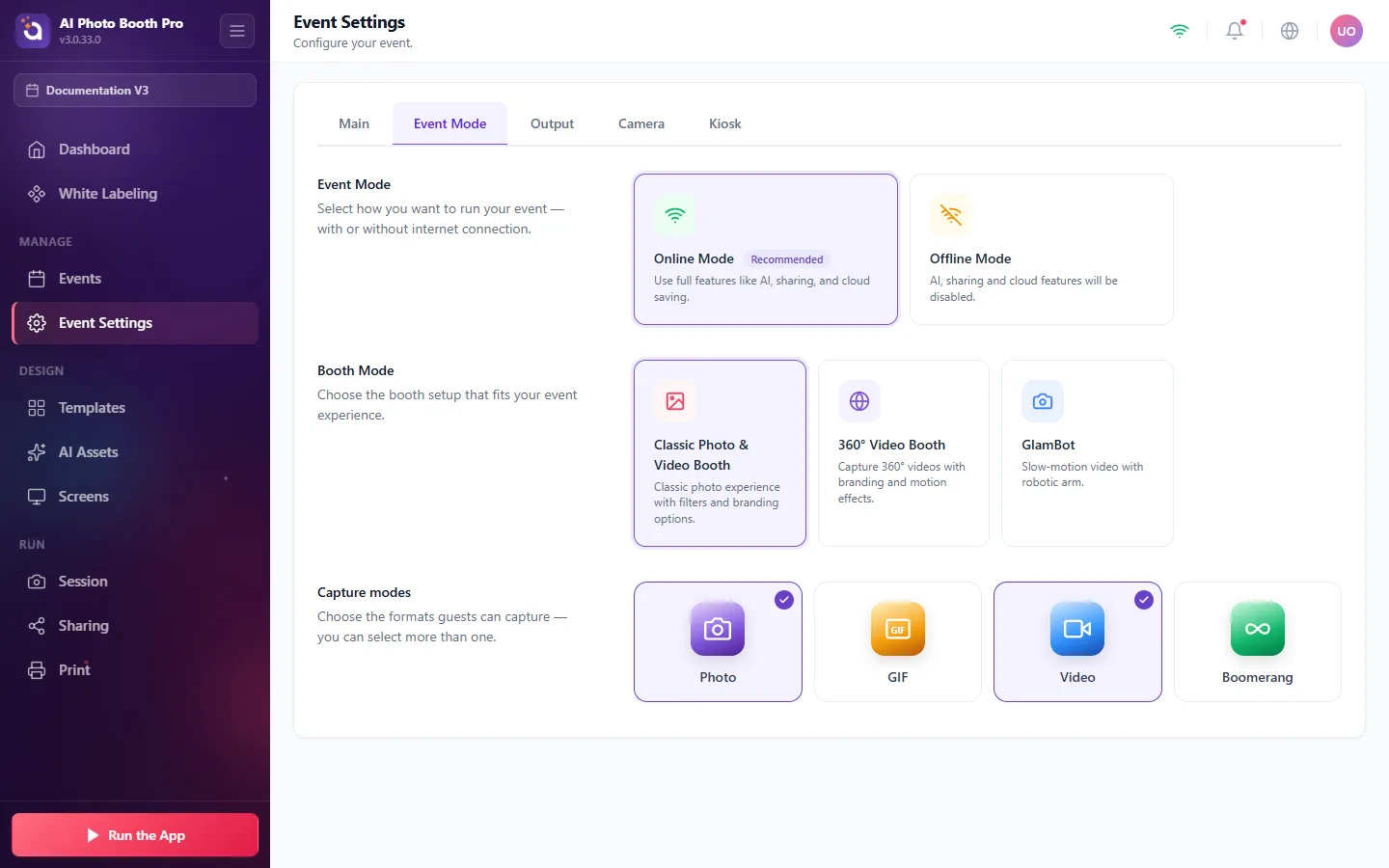
- Online vs Offline Mode, Online unlocks AI, sharing, and cloud saving (recommended). Offline disables them for venues without internet.
- Booth Mode, Classic Photo & Video Booth, 360° Video Booth, or GlamBot (slow‑motion with a robotic arm).
- Capture modes, let guests take Photo, GIF, Video, and/or Boomerang (select one or more).
Output
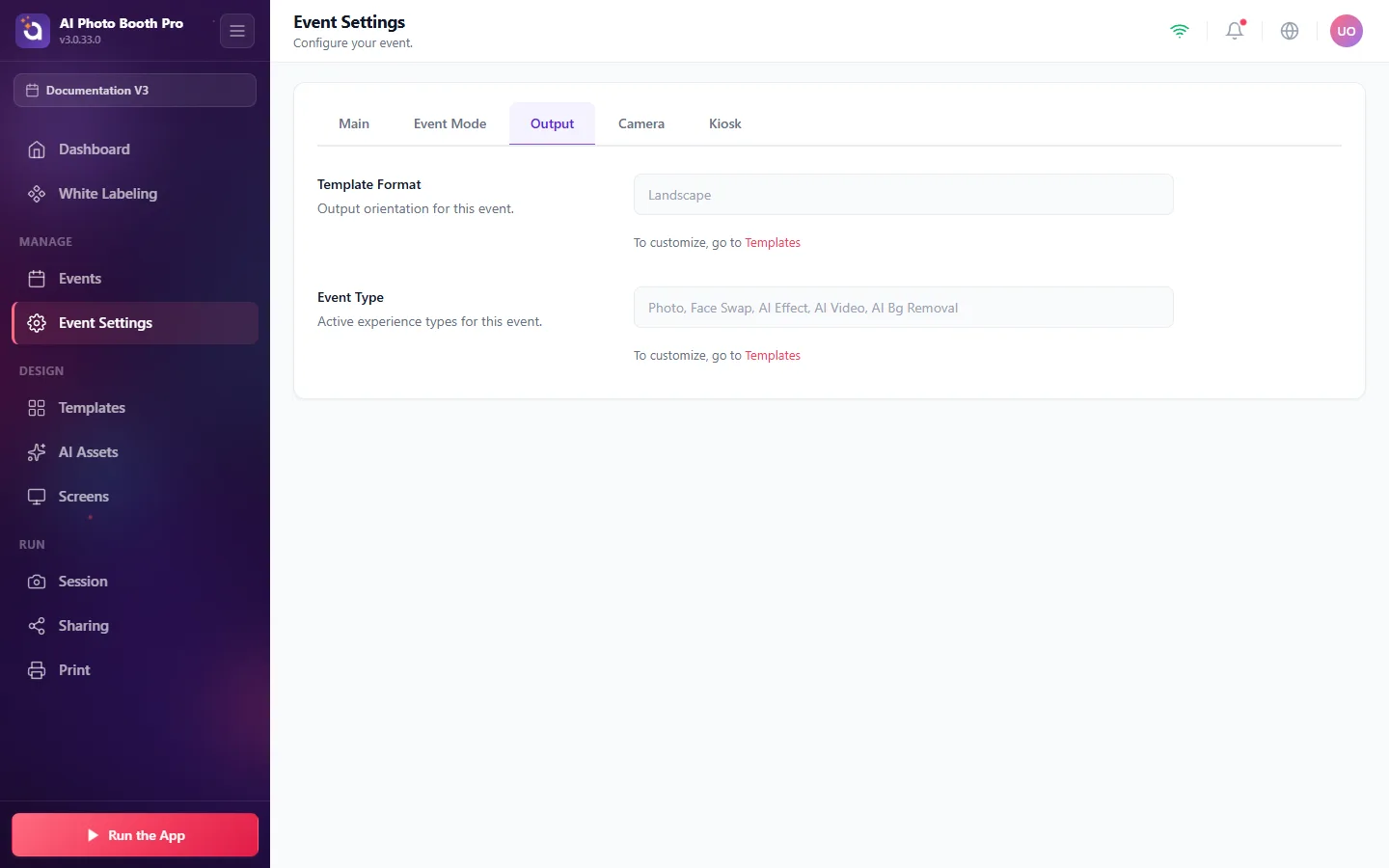
Pick the Template Format (orientation, e.g. Landscape) and review the active Event Type experiences (Photo, Face Swap, AI Effect, AI Video, AI Bg Removal). These are customized under Templates.
Camera
Connect and tune your camera. Click Select Camera, choose your device (a USB webcam, or a virtual camera such as OBS Virtual Camera), then use the live preview to confirm framing. The Take a Test Shot button captures a sample, and Adjustments let you set preview brightness, mounting angle (rotation), and mirror (flip) for preview and result.
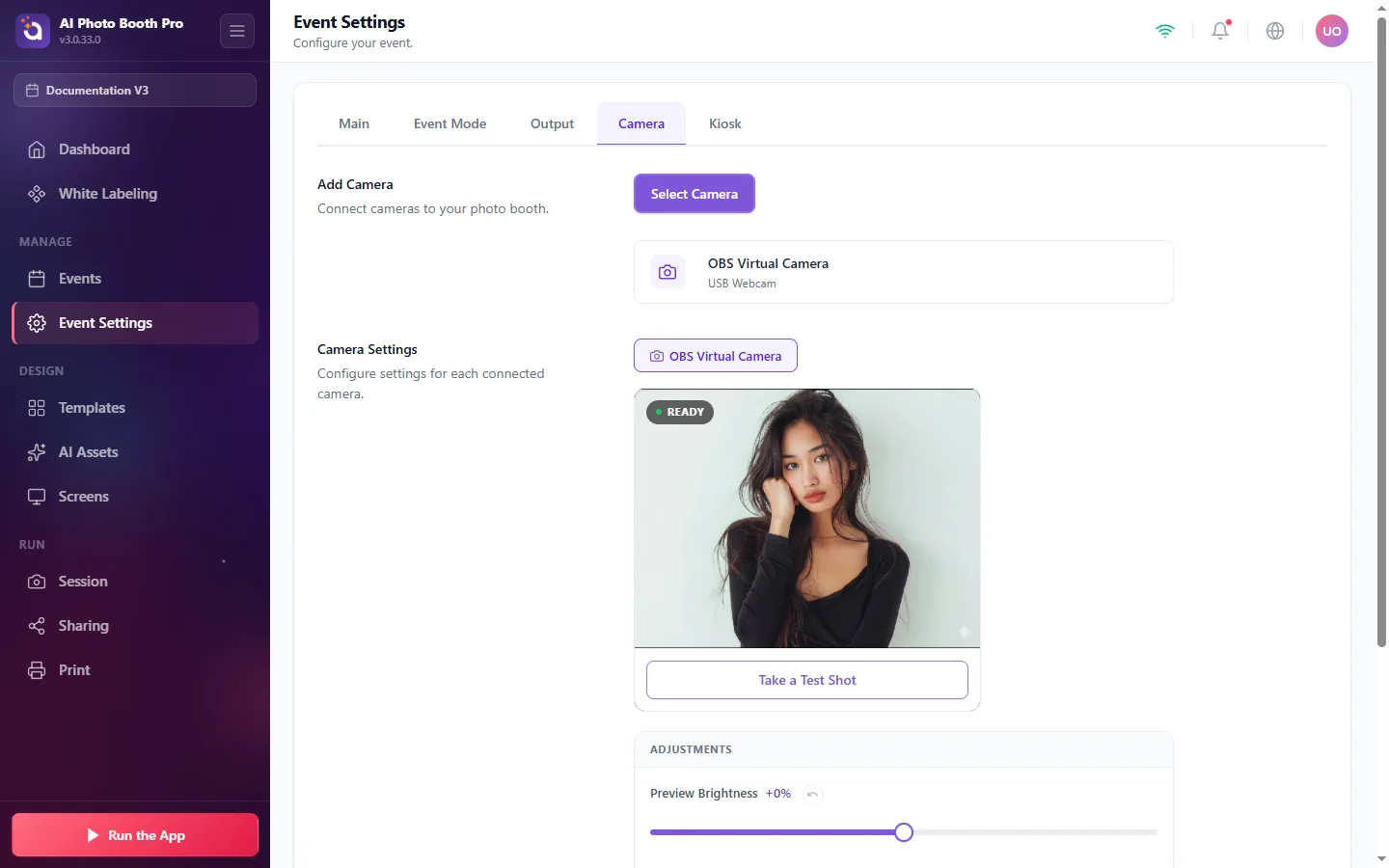
The "READY" live preview shows exactly what the booth sees. Always take a test shot before guests arrive.
Kiosk
Lock down the booth for unattended use:
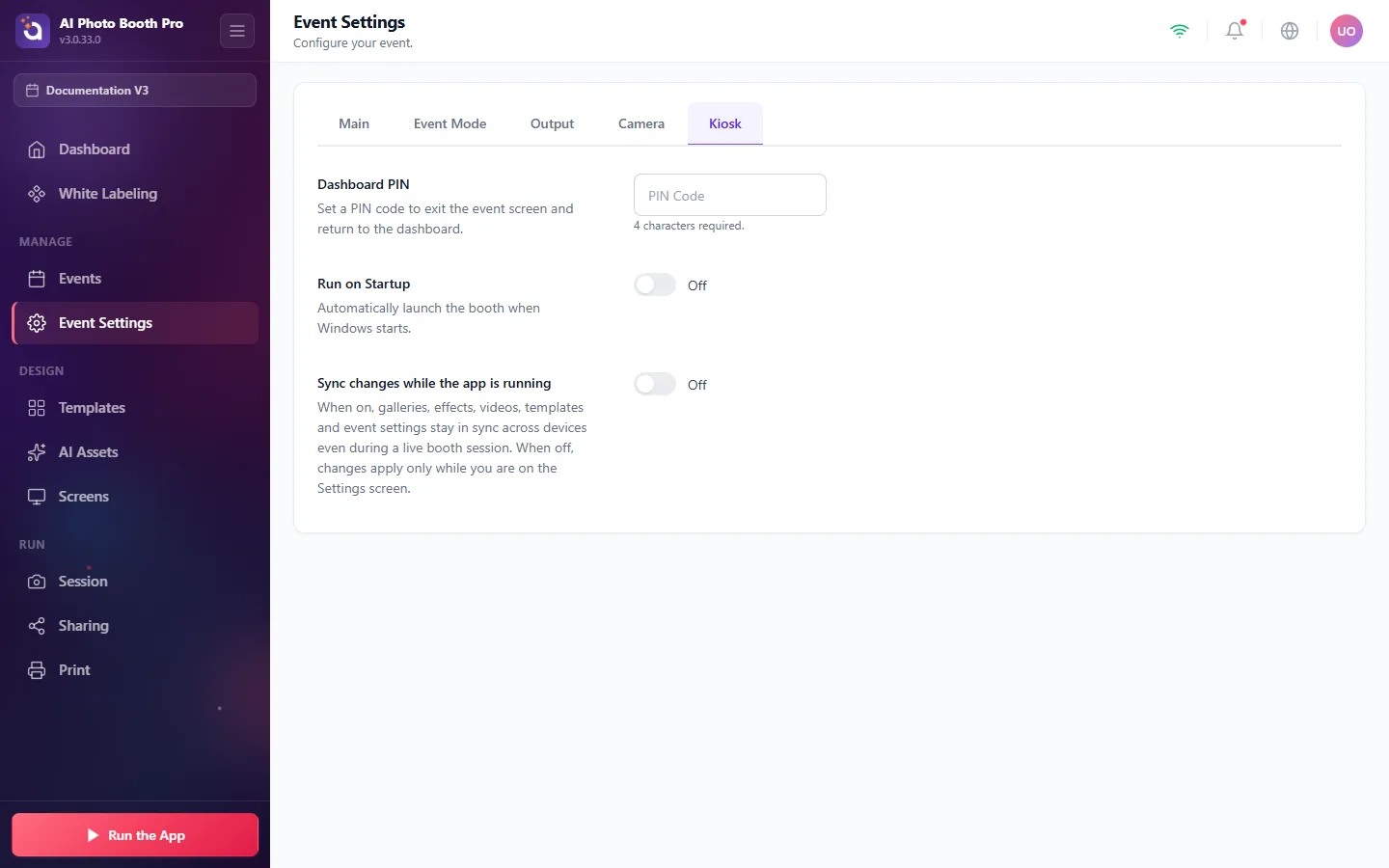
- Dashboard PIN, a 4‑character code required to exit the booth back to the dashboard.
- Run on Startup, automatically launch the booth when Windows starts.
- Sync changes while the app is running, keep galleries, effects, and settings in sync across devices during a live session.